

Seamlessly migrate your emails to Zoho Mail with Dhruvsoft / ZoSuccess. Whether you’re moving from Google Workspace, Microsoft 365, on-premise Exchange servers, or other email services, our migration services ensure a secure, efficient, and hassle-free transition.
At Dhruvsoft, we handle every aspect of the migration process — from planning and setup to post-migration support — so your team can continue working without disruption. Our services are designed for businesses of all sizes, ensuring your data remains safe, organized, and accessible throughout the migration.
Why Migrate to Zoho Mail?
Zoho Mail is more than just an email service – it is an enterprise-grade / business-class email solution that provides:
- Secure Email Hosting – Advanced spam filters, encryption, and two-factor authentication protect your emails.
- Ad-Free Interface – Focus on your work without distractions from ads.
- Collaborative Tools – Zoho Mail integrates with Zoho Workplace apps for productivity, calendars, and task management.
- Custom Domain Support – Use your own business domain for professional communication.
- Cloud Accessibility – Access your emails from anywhere, on any device as the mails are on the cloud.
- Compliance & Retention – Meets industry standards and ensures audit-ready email archiving.
Migrating to Zoho Mail ensures your business communication is professional, secure, and streamlined.
Steps to Complete Before Migration
Before starting your migration to Zoho Mail, certain steps must be completed to ensure a smooth transition:
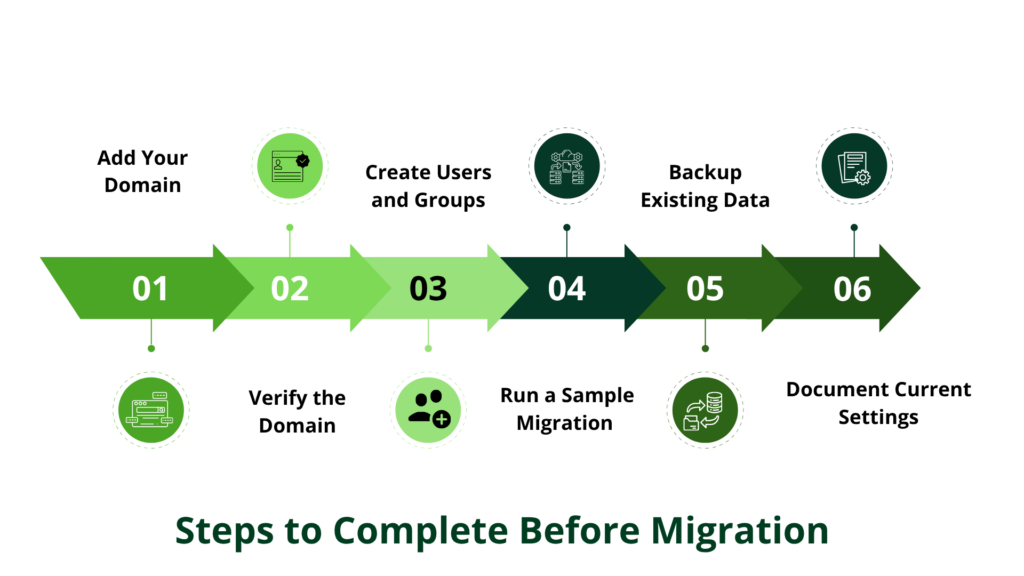
- Add Your Domain(s) – Add your organization’s domain(s) in Zoho Mail to begin the migration process.
- Verify the Domain(s) – Confirm ownership of your domain to activate Zoho Mail services.
- Create Users and Groups – Set up all necessary accounts and groups in advance to prevent delays.
- Run a Sample Migration – Test the migration process with 3–4 users to identify potential issues.
- Backup Existing Data – Always take a full backup of current emails, contacts, and calendars to avoid accidental data loss.
- Document Current Settings – Keep records of MX records, SPF, DKIM, and DMARC settings for smooth DNS updates.
Following these steps, along with choosing the correct migration type and adhering to best practices, ensures a seamless transition with minimal downtime.
Planning the Migration
Proper planning is critical for a smooth migration. Consider the following recommendations:
- Choose Low-Traffic Hours – Weekends or off-peak hours are ideal for switching your email service.
- Inform Users in Advance – Provide users with login credentials, new mailbox structure, and instructions before the migration.
- Update MX Records – Change MX records to Zoho Mail during low-activity hours to prevent lost emails.
- Configure Email Routing – Properly route incoming emails to prevent missed messages during migration.
- Create a Catch-All Account – Monitor emails sent to addresses not yet created in Zoho Mail (not required for Split Delivery).
- Set Up Security Policies – Enable two-factor authentication, password policies, and restricted access to ensure safety.
A well-planned migration minimises downtime, maintains employee productivity, and avoids unnecessary disruptions.
Types of Zoho Mail Migration
Zoho Mail supports multiple migration types, each suited to different email systems:
1. One-Click Migration / App Migration
- Best for Migration from Google Workspace and Microsoft 365.
- Administrators authorise Zoho to access emails, calendars, and contacts securely.
- Fast, secure, and simple setup.
- Maintains folder structure and email states for seamless user experience.
2. IMAP / POP Migration
- Ideal for most email providers, including GoDaddy, Titan Mail, and others.
- IMAP migration preserves folder structures, email status (read/unread), and sent items.
- POP migration only transfers emails to the Inbox and may mark all emails as unread.
- IMAP is recommended for organizations with multiple devices per user.
3. Manual Migration via Zoho Exchange Migration Tool
- For on-premise Exchange servers or offline PST/EML files.
- Migrates emails, contacts, calendars, tasks, and notes depending on file type.
- Admins can schedule batch migrations for large organizations.
4. PST Migration
- Migrate all PST mailbox data, including emails, contacts, calendars, tasks, and notes.
- Supports both individual and bulk migrations.
- Maintains folder structure for seamless adoption.
5. EML Migration
- Supports ZIP or EML file formats.
- Can be initiated by users or admins.
- Ensures a complete transfer of emails from legacy systems.
6. Exchange Migration
- Admin-only migration from Exchange servers.
- Transfers emails while maintaining folder hierarchy.
- Compatible with Exchange 2010, 2013, 2016, and 2019.
7. Active Directory Sync
- Synchronize Zoho accounts with your Active Directory service.
- Supports GAL or LDAP integration for bulk user import.
- Simplifies user management for large organizations.
IMAP vs POP Migration
IMAP migration is highly recommended over POP due to its advanced features:
| Feature | IMAP Migration | POP Migration |
|---|---|---|
| Folder structure | Preserved | All emails go to the Inbox |
| Email status | Read/Unread preserved | All emails marked Unread |
| Multiple client support | Supported | Only one client supported |
| Sync sent emails | Supported | Not supported |
| Speed & reporting | Faster with detailed migration reports | Slower, less accurate |
IMAP ensures users can continue from where they left off without losing folder organization or email states
Zoho Exchange Migration Wizard
For organizations using on-premise Exchange servers or offline files, the Zoho Exchange Migration Wizard simplifies migration:
| Feature | IMAP Migration | POP Migration |
|---|---|---|
| Folder structure | Preserved | All emails go to the Inbox |
| Email status | Read/Unread preserved | All emails marked Unread |
| Multiple client support | Supported | Only one client supported |
| Sync sent emails | Supported | Not supported |
| Speed & reporting | Faster with detailed migration reports | Slower, less accurate |
Download the Zoho Exchange Migration Tool here.
Migration Best Practices
Follow these practices to ensure a smooth migration:
- Run a sample migration with 2–10 users to understand server behaviour (user limits, mailbox size, speed).
- Set maximum server connections based on server load and user count.
- Assign priorities to users during batch migration.
- Monitor for server throttling in IMAP migrations.
- Re-migrate sample users to capture emails delivered before MX record changes.
- Typical example: Migrating 25 users, each with 2GB mailboxes and a max connection of 10, takes approximately 11 hours.
- Maintain a migration log to track progress and troubleshoot errors quickly.
- Communicate changes to all users and provide training for new mailbox features.
Email Provider-Specific Migration
| Previous Email Service | Migration Type |
|---|---|
| Google Workspace | One-Click Migration / IMAP Migration |
| Microsoft 365 | One-Click Migration / IMAP Migration |
| On-Premise Exchange | Zoho Exchange Migration Tool / Web Services |
| Other Providers (GoDaddy, Titan Mail) | IMAP / POP Migration |
Each email service has unique features, so our migration specialists analyse your system before starting the process to ensure zero data loss and minimal downtime.
Common Challenges in Email Migration
Migrating email systems can be complex. Some common challenges include:
- Data Loss Risk – Improper migration may lead to missing emails, contacts, or calendars.
- Downtime – Email services may be unavailable if MX records are not updated properly.
- Folder Structure Disruption – POP migration or improper IMAP setup can flatten folder hierarchies.
- User Confusion – Users may struggle with new interfaces or login credentials.
- Compatibility Issues – Legacy email systems may have unsupported file formats or large attachments.
Our experts at ZOSuccess handle these challenges with precision and experience, ensuring a smooth, worry-free migration.
Post-Migration Optimization
After migration, it is crucial to:
- Verify Data Integrity – Check that all emails, contacts, calendars, and attachments are intact.
- Test Functionality – Ensure email sending, receiving, and forwarding work correctly.
- Update Email Clients – Configure Outlook, Apple Mail, and mobile clients for Zoho Mail access.
- Train Users – Provide step-by-step instructions for new features like Zoho Mail’s web client, labels, filters, and collaboration tools.
- Monitor System Performance – Watch for sync issues, delayed emails, or login errors.
Security and Compliance
Zoho Mail provides enterprise-level security to protect your organization’s communication:
- End-to-End Encryption – Emails are encrypted at rest and in transit.
- Two-Factor Authentication (2FA) – Additional layer of account security for Zoho mail.
- Role-Based Access – Assign permissions based on roles to protect sensitive data.
- Audit Logs – Track email activity for compliance.
- SPF, DKIM, and DMARC – Protect your Zoho Mail against spoofing and phishing attacks.
Security compliance is critical, especially for financial, legal, or healthcare organizations, where email confidentiality is mandatory.
Troubleshooting Common Migration Issues
Even with careful planning, issues may arise:
- Connection Timeouts – Increase server connection limits and retry.
- Email Not Migrating – Verify user credentials and permissions.
- Large Attachments Failing – Use PST or EML migration for large files.
- Duplicate Emails – Configure migration settings to avoid duplicates.
- Incorrect Folder Mapping – Check IMAP folder mapping and re-map if necessary.
Our team provides end-to-end support, including remote troubleshooting and step-by-step guidance.
Why Choose ZOSuccess for Zoho Mail Migration?
- Expert Guidance – We analyse your existing email setup and provide a tailored migration plan.
- Zero Data Loss – Secure migration with no disruption to email flow.
- Fast & Efficient – Optimized migration process for minimal downtime.
- Full Support – Post-migration support ensures all users are up and running.
- Scalable Solutions – From small businesses to enterprises, our process works for all organization sizes.
- Cost-Effective – Transparent pricing based on the number of users, mailbox size, and complexity.
Contact the ZoSuccess / Dhruvsoft team today and let us handle your Zoho Mail migration professionally and seamlessly.
FAQs on Zoho Mail Migration
How long does a Zoho Mail migration take?
Time depends on the number of users, mailbox size, and migration type. Small migrations may take a few hours, while large enterprise migrations can take one to three days.
Can I migrate my emails without downtime?
By updating MX records and scheduling batch migrations during off-peak hours, businesses can minimise disruption, maintain email access, and ensure a smooth transition with minimal downtime.
Do you migrate contacts and calendars as well?
Yes. Zoho Mail supports migration of emails, contacts, calendars, tasks, and notes, depending on the migration method, ensuring complete and seamless data transfer.
Is my email data secure during migration?
Absolutely. Migrations use secure connections, encryption, and industry best practices to ensure complete data protection, confidentiality, and zero data loss throughout the migration process.
Can I migrate multiple domains at once?
Yes. Dhruvsoft / ZoSuccess supports multi-domain migrations and manages them in batches, reducing complexity while ensuring a structured and efficient migration process across multiple domains.
Which migration type is best for Google Workspace users?
One-Click Migration is recommended for Google Workspace users due to its speed and simplicity, while IMAP migration remains a reliable alternative if needed.
Can we test migration before full deployment?
Yes. A sample migration is highly recommended before full deployment to identify potential issues early and ensure a smooth and error-free large-scale migration.
Do you provide post-migration support?
Yes. Post-migration support ensures all users are fully operational, along with guidance and training to help teams effectively use Zoho Mail features.
Can PST or EML files be migrated?
Yes. PST and EML files can be migrated using Zoho Exchange Migration Wizard, enabling secure transfer of archived or local email data into Zoho Mail.
Do you help with Active Directory integration?
Yes. We support Active Directory integration by synchronising Zoho Mail accounts using GAL or LDAP, enabling centralised user management and seamless directory access.

 “ZOSuccess” is the Zoho Consulting Practice of Dhruvsoft Services Private Limited – a leading Zoho Advanced Partner from India – providing services worldwide …